
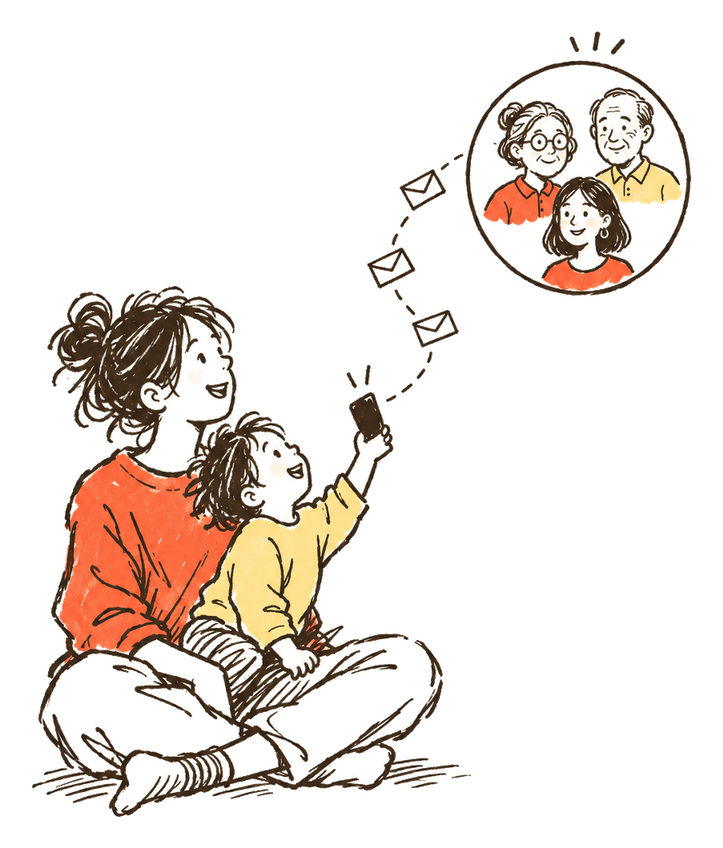
Lots of parents want family to see every new photo of the baby without posting it on Instagram or Facebook. You don’t need a public post for that. What matters is who can see the photos, whether they can pass them on, and whether the oldest people in the family can open them.
Here are the usual options, how each one handles those three things, and the settings worth checking. If you’re weighing up how much to share at all, our guide to sharenting sums up what child-safety bodies say.
Your options at a glance
Every private option trades ease against control. A group chat is quickest but anyone in it can forward a photo. Shared albums and folders keep photos in one place, but a link can travel. Email reaches everyone you pick. A private family app can set access person by person. No option stops a screenshot.
| Option | Who can see the photos | Can they pass them on? | Easy for grandparents | Stays organised |
|---|---|---|---|---|
| Family group chat | Everyone in the chat | Yes, by saving or forwarding | Yes, if they already use the app | No, photos scroll away |
| iCloud shared album | The people you invite, or anyone with the link if you allow it | Members can save photos to their own library | From iOS 27, on the web without an Apple Account | By album, not by child |
| Google Photos album link | Anyone with the link | Anyone with the link can view and add | Yes, from a link in a browser | By album, not by child |
| Google Drive folder | Only people you add, or anyone with the link | You can stop viewers downloading | Yes, from a link in a browser | By folder |
| The people you send it to | Yes, by forwarding | Yes | No, spread across emails | |
| Private family app | The people you invite, with the access you choose | Depends on the app; no app stops screenshots | Depends on the app | Often by child and date |
A family group chat
A family group on WhatsApp is the quickest start, because most of the family is probably there already. It’s private in the sense that only people in the chat see the photos. But anyone in it can save or forward a photo in a couple of taps, and photos are hard to find a month later.
When you send a photo, you choose Standard or HD quality. To make HD the default, open Settings, then Storage and data, then Media upload quality. You can’t improve a photo after it’s sent, but you can send it again in HD. A month later, finding the first smile means scrolling back past everything since.
A shared album
A shared album keeps the photos together in one place, and family open it from an invitation or a link. iCloud lets you invite people, approve who joins and remove them later. Google Photos links work without an account, but Google says anyone with the link can view and add. Our guide shows how to make a shared album step by step.
- iCloud shared albums let you invite people and remove them later. Members can save shared photos to their own library. In albums created with iOS 27 or later, family can join from a link on any phone or computer, even without an Apple Account or Apple device. You choose whether anyone with the link can join or only people you approve. These albums keep full resolution and count toward your iCloud storage. Albums created with iOS 26 or earlier reduce photos to 2048 pixels on the long edge and videos to 720p.
- Google Photos albums can be shared as a link that works for people without a Google Account. Google says anyone with the link can view the album and add to it. You can also make a QR code for the album. If the link reaches the wrong group chat, everyone in that chat can open it.
Albums are sorted by album, not by child. Everyone in an album sees all of it, and nothing shows how old the baby was in each photo unless you write it.
A shared folder
A shared folder in a cloud drive, such as Google Drive, gives you more control over the link than a photo album. You can keep the folder to people you add by email, or open it to anyone with the link. You can also stop viewers downloading, printing or copying files, though a screenshot still works.
In Google Drive, the General access setting decides who gets in. With Restricted, Google says only people who have been given access can open the file. With Anyone with the link, anyone on the internet who has the link can open it without signing in to a Google Account. To stop sharing with one person, open Share, choose their name and select Remove access.
A folder shows files, not a story. Photos sit in the order you name or upload them, and grandparents may need help finding the newest ones.
Email reaches almost everyone, and you pick each recipient. It suits a few photos at a time, sent to a small group that already checks email. The limits are size and forwarding. Gmail lets you attach up to 25 MB, anyone can forward an email, and over a year the photos end up spread across dozens of threads.
Above 25 MB, Gmail swaps the attachment for a Google Drive link.
A private family app
Apps made for family photos keep everything off public social media. Most add what chats and albums lack, such as access person by person, approval of what others add, and photos sorted by child. When you compare them, these six questions decide who really sees your child’s photos and whether you can take them with you.
- Access per person. Can a grandparent see everything while a friend sees one album?
- Adding without an account. Can a great-aunt add her photos from a link, or does she need to install something?
- Approval. Can you look at what others add before anyone else sees it?
- Downloads. Can you turn downloads on or off for each person?
- Getting everything out. Can you download all the originals, on every plan, whenever you like?
- Ads. Is the free version paid for with ads in your family’s space?
TinyThen is one of these apps, and it isn’t open yet. Each child has their own story, with their age on every memory. You invite family by email and choose for each person what they see and what they can add. Guests add photos from a link without an account, and parents can download everything on every plan. Our list of the best family photo sharing apps answers the six questions app by app.
Check the location before you share
A photo can carry the place it was taken, which for a baby is usually home. Some apps leave it out when you share and some don’t. Google says new Google Photos shared albums and links leave location out by default. Apple says a photo shared from the iPhone Photos app includes it unless you turn Location off under Options.
Our guide on removing location from photos has the steps for iPhone, Android, Mac and Windows.
Asking family not to repost
No app can stop a screenshot, so the conversation matters as much as the tool. Say it once, kindly, before the first photos go out: what’s fine to share, what isn’t, and why. If someone in the family loves to share, give them a place to add their own photos of the baby, so they have somewhere to put them that isn’t their public profile.
Our guide on how to ask family not to post baby photos has messages for grandparents, a mother-in-law who already posted, and friends at a party.
A quick checklist
- Decide who should see everything and who should see some.
- Pick one place for photos, so they don’t end up spread across chats.
- Check that the oldest person in the family can open it on their own. Our guide to sharing photos with grandparents has tips for setting it up with them.
- Turn off location before you share, or check that the app leaves it out.
- Make sure you can download the originals later.
- Tell family, once, what may be shared.
A message you can send family
We’d love you to see every photo of the baby, and we’re keeping them off social media. Everything will be in one private place, and we’ll send you the link. Please don’t post the photos or send them on without asking us first. If you take photos of the baby, we’d love those too.
Questions
What is the most private way to share baby photos with family?
Share with the fewest people, in a place where you choose who gets in. An album or folder limited to people you invite, or a family app with access per person, keeps photos away from anyone holding a forwarded link. No option stops a screenshot, so agree with family what they may share.
Is a WhatsApp group private enough for baby photos?
Only people in the group see the photos, so it’s as private as its members. Anyone in it can save a photo or forward it to another chat, and photos get buried quickly. It suits quick updates more than keeping photos together.
Can I share photos with a link that only family can open?
Yes, if the service lets you limit the link. In Google Drive, Restricted means only people you’ve added can open a folder. In an iCloud album made with iOS 27 or later, you can approve each person who asks to join. A Google Photos album link opens for anyone who has it.
Should I remove the location from baby photos before sharing?
It’s worth checking, because photos taken at home can carry your address. Google Photos leaves location out of new shared albums and links by default. On iPhone, turn off Location under Options when you share. Our location guide covers every device.
Sources
- WhatsApp Help Center: About HD photos and videos
- Apple Support: Shared Albums limits
- Apple Support: How to use Shared Albums in Photos on your iPhone, iPad, or Apple Vision Pro
- Google Photos Help: Share photos & videos
- Gmail Help: Send attachments with your Gmail message
- Google Drive Help: Share and manage access to files and folders in Google Drive
- Google Photos Help: How Google Photos protects your location data
- Apple Personal Safety User Guide: Manage location metadata in Photos
 Leo