
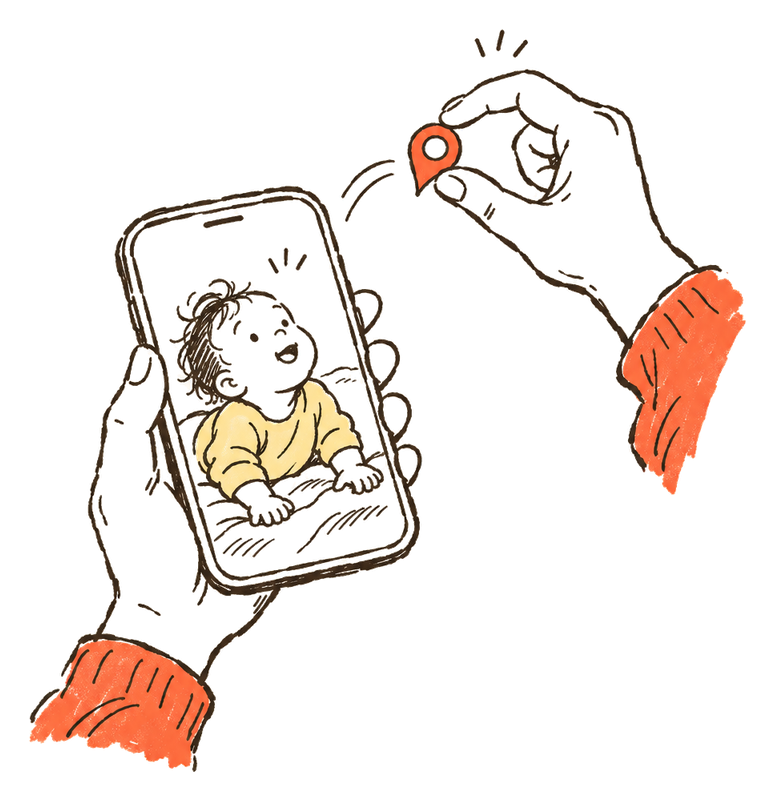
Most photos of a baby are taken in the same few places, and the main one is home. If location is turned on for your camera, each of those photos can carry the spot where it was taken. Send it to the wrong group, or post it, and you may be sharing your address along with the first smile.
You can stop the camera saving the location, and you can take it out of photos you already have or are about to share. Here is how on each device, using the steps the makers publish. Child-safety bodies list location among the main risks of sharing photos of children; our guide to sharenting sums up what they say.
What a photo can tell people
When Location Services is on for the Camera, your iPhone embeds the coordinates of where each photo and video was taken. Apple says people you share them with may be able to read that location and learn where the photo was taken. The same file also holds the date and time, the device, camera settings and any caption.
All of this hidden information is called metadata. On iPhone, open a photo and swipe up to see it. The details show the device, the date and time, camera settings such as lens and shutter speed, and where the photo was taken.
Taking the location out of the file helps, but it doesn’t make a photo anonymous. Google points out that people may still guess where a photo was taken from landmarks in it.
Where to turn location off
Each device has up to three switches. One stops the camera saving location in new photos, one removes it from a photo you already have, and one leaves it out when you share. This table shows where each one is. The sections below give the full steps for each device.
| Device | Stop new photos saving it | Remove it from a photo | Leave it out when you share |
|---|---|---|---|
| iPhone or iPad | Settings > Privacy & Security > Location Services > Camera > Never | Photos > More > Adjust Info > Adjust Location > No Location | Share > Options > turn off Location |
| Google Pixel | Camera > Settings > More settings > turn off Save location | Google Photos removes only estimated or added locations | Google Photos albums and conversations leave it out by default |
| Samsung Galaxy | Camera settings > turn off Location tags | Gallery > More options > Details > Edit > red minus sign | Remove it in Gallery before you share |
| Mac | Set it on the phone that took the photo | Photos > Image > Location > Hide Location | Photos > Settings > General > deselect Include location information |
| Windows | Settings > Privacy & security > Location > switch Camera off | File Explorer > Properties > Details > Remove Properties and Personal Information | Share the copy without properties |
Remove location from photos on iPhone and iPad
On iPhone and iPad you can leave the location out each time you share, remove it from photos in your library, or stop the Camera saving it at all. Apple’s Personal Safety guide covers all three. Apple also notes that sharing a photo from the Photos app includes its metadata, such as date and time, location, device and captions.
Leave the location out when you share
- Open the Photos app and select one or more photos.
- Tap the Share button, then tap Options.
- Turn off Location. “Location Not Included” appears above the Options button.
- Share the photos as usual, for example in Messages or Mail.
Apple lists this separately from removing the location from the photo itself, so the photo in your library keeps its location until you remove it, as below.
Remove the location from a photo
- Open the Photos app and open the photo.
- Tap the More button.
- Tap Adjust Info, tap Adjust Location, then tap No Location.
To change several photos at once, Apple says to tap Select, choose the photos, then follow the same steps. To bring a photo’s original location back, use Revert in the same place.
Stop the camera saving location
Go to Settings > Privacy & Security > Location Services > Camera, then tap Never. Apple describes this as a separate step from removing the location you already have, so photos taken before the change keep theirs until you remove it.
Check whether a photo has a location
Open the photo and swipe up, or tap the Info button. If the photo has a location, you see where it was taken. In the Collections tab, the Map collection shows only photos and videos that have a location saved.
Remove location from photos on Android
On Android, the setting that matters is in your camera app, and its name depends on the phone maker. Google Photos can remove a location it estimated or one you added, but Google says it can’t remove a location your camera saved. On a Samsung Galaxy, the Gallery app can remove that location from a photo.
Turn off location in the camera
On a Google Pixel, open the Camera app, tap Settings at the bottom left, tap More settings, then turn off Save location.
On other phones, open your camera’s settings and look for the switch Google lists for that maker. On Samsung it’s called Location tags; on Motorola and Sony, Save location; on OnePlus, Store location data; on Xiaomi, Save location info; on LG, Tag locations. This only affects new photos.
Remove a location in Google Photos
- Open Google Photos and open the photo.
- Tap More, then Edit.
- Tap Remove location.
For several photos, select them, tap More, then Edit location, then Remove location. Google Photos may tell you it can’t edit locations added by your camera; deselect those photos to carry on.
Google Photos also guesses missing locations from landmarks and your other photos. To stop that, tap your profile photo, then Photos settings > Privacy > Location options, and turn off Estimate missing locations. Locations it already estimated stay until you remove them.
Remove a location on a Samsung Galaxy
- Open the Gallery app and select the photo or video.
- Tap More options (the three dots), then Details.
- Tap Edit, then tap the red minus sign next to the location.
- Tap Save.
Remove location from photos on a Mac
On a Mac, the Photos app can hide a photo’s location, and one setting decides whether location goes out with the photos you share or export. Apple describes both in the Photos User Guide for Mac. Turning the setting off covers location that a GPS camera, including an iPhone, saved in your photos.
Leave the location out when you share or export
- In Photos, choose Photos > Settings, then click General.
- Under Sharing, deselect Include location information.
Hide the location of a photo
- In Photos, select the photos you want to change.
- Choose Image > Location, then choose Hide Location.
To undo it, choose Revert to Original Location in the same menu. To check a photo’s location, select it and click the Info button, or press Command-I.
How to remove metadata from photos on Windows
On Windows, File Explorer can make a copy of a photo with its properties removed, or remove the properties you pick from the original. Microsoft describes the tool in a tip written for Windows 7. It removes the properties it can change for that type of file, so check the copy before you share it.
Make a copy without metadata
- In File Explorer, select one or more photos.
- Right-click and choose Properties.
- Open the Details tab and click Remove Properties and Personal Information.
- Keep the first option to make a copy with every property it can remove taken out. The copy has the original name with “Copy” added.
The second option, Remove the following properties from this file, lets you tick the properties to remove from the original file. Microsoft notes that a property without a check box can’t be edited. Afterwards, open Properties again and look at the Details tab to see what is left.
Stop the Camera app saving location
Microsoft says the Windows Camera app can add latitude and longitude to photos on devices that support it. To stop it, go to Settings > Privacy & security > Location, and under Let apps access your location, switch Camera off.
What apps do with location when you share
Apps handle location differently, and not every app says what it does. Google Photos spells it out. Albums, links and conversations you share leave location out by default, while partner sharing includes it. Apple says a photo shared from the iPhone Photos app includes its location unless you turn Location off under Options.
Google Photos
- New shared albums, links and conversations don’t include location unless you choose to share it. Google says conversations started before 18 August 2021 show locations unless you turned that off.
- For each shared album, open the album, tap Share, then Options, and turn Share photo locations on or off. Our guide on making a shared album covers the other settings worth checking.
- Partner sharing includes location in every photo you share.
- Estimated locations are never shared, even when you choose to share locations.
- Outside Google Photos, for example when you download a photo and email it, the photo keeps the original location your phone saved, without edits you made in Google Photos.
iPhone Photos
- Messages, Mail and other apps get the photo with its metadata, including location, unless you turn off Location under Options before you share.
- All Photos Data under Options sends the original file with its edit history and metadata. Apple says this works with AirDrop only.
Other apps
If an app’s help pages don’t say what happens to location, don’t count on the app to remove it. Take the location out on your phone first, using the steps above.
How TinyThen handles location
TinyThen isn’t open yet. When it opens, the photo previews family see will have GPS location and other embedded metadata removed. The original files you upload keep their embedded data, so an original download may still carry the location. Parents can always download the originals; anyone else only when a parent allows it. For other ways to keep photos within the family, see our guide to sharing baby photos without social media.
Questions
These are the questions that come up most once parents start checking their photos. Location is saved by the camera when you take a photo or video, it stays in the file until you remove it, and it can travel with any photo you send unless the app or the share option leaves it out.
Does turning off location remove it from photos I already took?
No. Apple lists removing the location from photos you have and stopping the Camera collecting it as two separate steps. Google Photos works the same way for its own guesses. If you turn off estimates, the locations it already estimated stay until you remove them.
Do videos carry a location too?
Yes. Apple says the coordinates are embedded in each photo and video, and on iPhone you change or remove a video’s location the same way as a photo’s.
Why can’t I remove the location in Google Photos?
Google Photos can change or remove only locations it estimated or ones you added. If your camera saved the location, Google says you can’t change or remove it in Google Photos. On a Samsung Galaxy you can remove it in the Gallery app.
What else is in a photo’s metadata?
On iPhone, the details include the device that took the photo, the date and time, camera settings such as lens, shutter speed and file size, the location, and any caption or keywords. On Windows, the Remove Properties tool can remove the properties it can edit for that type of file.
How do I remove all metadata from a photo, not just the location?
On Windows, File Explorer’s Remove Properties and Personal Information makes a copy with every property it can remove taken out. On iPhone, Android and Mac, the makers’ own steps cover the location. Apple notes that sharing from the iPhone Photos app includes metadata such as the date and time, device and captions, and the switch under Options is for the location.
If I remove the location, can people still tell where a photo was taken?
Sometimes. Google says people may guess the location from landmarks in a photo even when the location isn’t shared. Look at the background before you send a photo taken outside your home.
Sources
- Apple Personal Safety User Guide: Manage location metadata in Photos
- iPhone User Guide: See photo and video information on iPhone
- iPhone User Guide: Share photos and videos on iPhone
- Photos User Guide for Mac: Add titles, captions, and more to photos and videos
- Photos User Guide for Mac: Photos settings on Mac
- Google Photos Help: Understand, find & edit your photos’ locations
- Google Photos Help: How Google Photos protects your location data
- Google Photos Help: Change your camera location settings
- Pixel Camera Help: Change your Camera app settings
- Samsung Support: Use the Gallery app on your Galaxy phone or tablet
- Microsoft Support: How to use the Windows Camera app
- Microsoft Learn (TechNet Magazine): Remove personal metadata from files to protect your privacy