



Skip to content

Feature

Photo albums for one child, or for brothers and sisters together.

Make a baby photo album for a trip, the first year or bedtime stories. Each album is for one child or several and shows up under each of them. The memories stay in the timeline too, and you can share an album with someone without sharing the rest.

Albums in TinyThen: three album covers with their memory counts, one for two children, one shared with a friend, and one of visits to the grandparents.

When it helps

Albums families keep.

  • A father crouches in the waves and holds a laughing toddler’s hands at the edge of the sea.

    At Grandma’s

    Put every visit in one album, and each photo keeps its own day in the timeline.

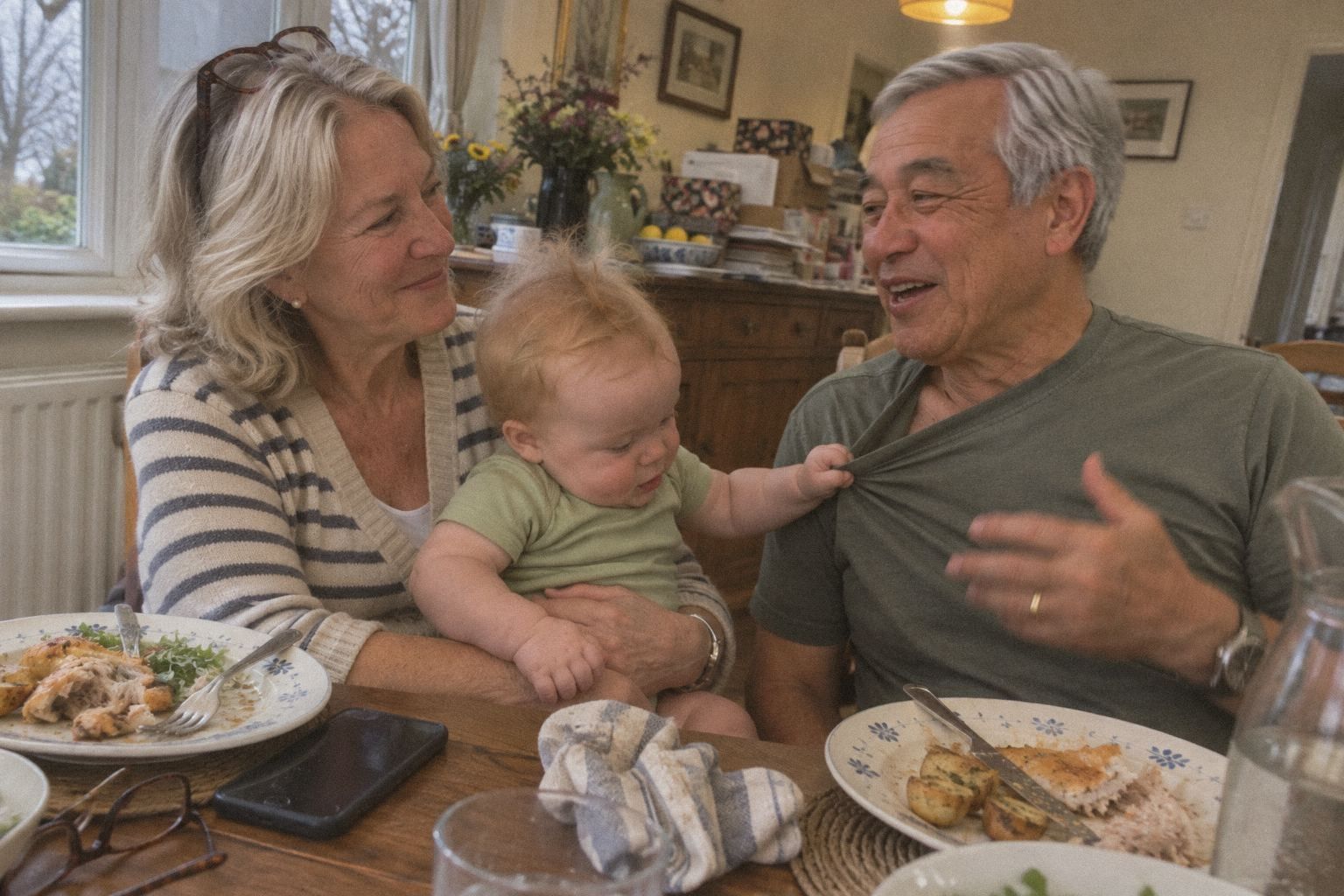
  • A baby on his grandmother’s lap at the lunch table tugs at his grandfather’s T-shirt.

    Sunday lunch at Grandma’s

    Let the grandparents add to an album, and their photos from the day wait for you first.

  • A toddler in a winter coat and a mustard bobble hat laughs on a park swing.

    Swings in the park

    Keep the everyday ones too. A memory can sit in several albums and keeps its place in the timeline.

How it works

An album in four steps.

  1. Give it a name

    On your child’s Albums tab, tap New album and name it. With more than one child, choose who it’s for under Who’s it for?, then tap Create album.

  2. Choose memories

    Tap Choose memories. You see the memories that aren’t in the album yet, month by month. Tick up to 100 and tap Add to album.

  3. Keep adding to it

    Choose more later, or select memories anywhere in the timeline and tap Add to album. Add new memories puts fresh photos straight in.

  4. Share it if you like

    Invite someone to just this album, share it with a viewing link, or turn on its guest link so others can add their photos.

In the app

From a name to a full album.

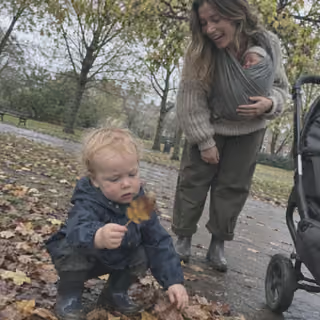
  1. New album: the name Our autumn, both children chosen under Who’s it for?, and Create album.
    Starting an albumA name and, in a family of several children, who it’s for. You can change both later.
  2. Choose memories for the album At Nana’s: a photo from May 2026 and one from April 2026, both ticked, and Add 2 to album.
    Choosing memoriesPick from the timeline, month by month, and add them in one go.
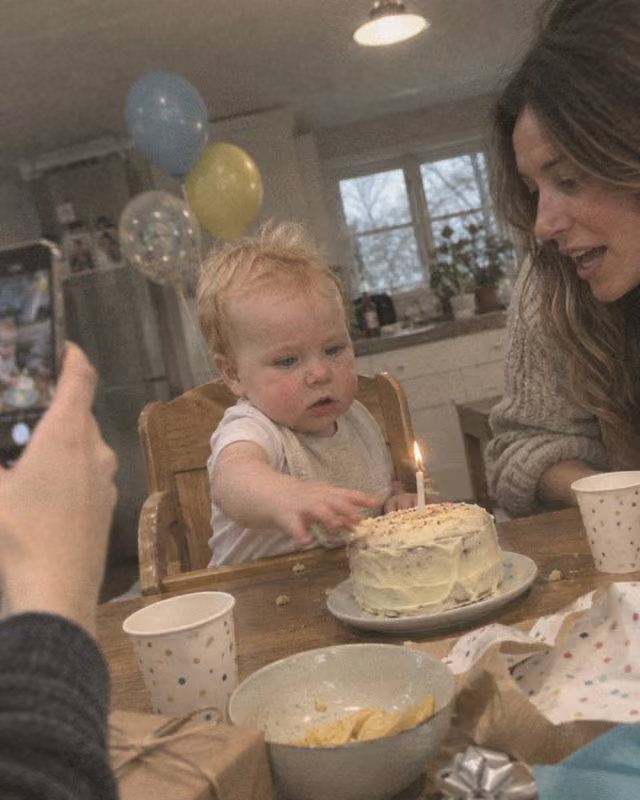
  3. The album Leo’s 1st birthday: Guests can add photos, You approve each one, 3 waiting, Show QR, and its photos below.
    Guests adding to itTurn on the album’s guest link and show its QR code. You approve each photo, or let them in.

What to know

How albums work.

  • For one child or several

    An album is tagged with one or more children and appears under each of them. Change its children whenever you like.

  • Memories stay in place

    Adding a memory to an album never changes its children or its date. Removing it leaves it in the timeline.

  • Share a single album

    Invite someone to only some albums, or make a viewing link that shares just one. They see everything in it.

  • A guest link per album

    Each album has its own guest link and QR code, so the party photos land in the party album. Our first birthday time capsule guide shows how.

  • Seeing one child only

    Someone who may see only one child sees that child’s memories in a shared album. To show them all of it, share the album.

  • Parents keep them tidy

    Parents create, rename and delete albums. Family who may add to an album can add new photos straight into it.

  • Nothing is copied

    An album points to memories in the timeline. A memory in three albums is stored once and counts toward your storage once.

  • 100 at a time

    Choose up to 100 memories in one go. There’s no limit on how many albums you make or how much each one holds.

In detail

Everything an album can do.

Albums are optional. The timeline already keeps every memory in order. An album gathers the ones that belong together, for you and for the people you share it with.

One album for brothers and sisters

An album can be for one child or several. An album for two children shows on each child’s Albums tab. It’s still one album, so you add a photo once. Change who it’s for later with Edit album.

Adding a memory to an album never changes who is in that memory. A photo of one child keeps that child’s tag, even in an album for two. When you add from the timeline, TinyThen offers only the albums for a child who is in every memory you selected. An album for one child shows that child’s age beside each day or month.

Leo’s and Brooks’s Albums tabs both show the album Our autumn, one album for both boys.

What stays in the timeline

An album points to memories that already live in the timeline, so nothing is copied. Every memory keeps its own date and your child’s age, and it can sit in several albums at once.

To take memories out, tap Select in the album, choose them and tap Remove. They stay in the timeline and in any other album. Deleting a memory takes it out of the timeline and every album, into Recently deleted. If a parent restores it within 30 days, it goes back into its albums too. An album’s cover is its newest memory, and its header shows the months it spans and how many memories it holds.

The big brother photo in the baby’s September 2026 timeline, beside his photo asleep in a moses basket, is also in two albums, Our autumn and Baby Brooks, while the original is stored once.

Who can do what

Parents create, rename and delete albums, choose their children, and add or remove memories. Family members don’t organise albums, but you can let someone add to one. When you invite someone with Only some albums and books, they see the albums you tick and can add to those albums.

A family member who may add to an album sees an Add memories button inside it. What they add goes into that album and into your child’s timeline, straight away or once you approve it, as you set for that person. They can’t take anything out of the album.

In the album Leo’s 1st birthday, a parent can do everything, Nana may see it and add memories, and May may only see it.

Sharing one album

You can share an album without sharing the rest of your child’s story. Invite someone by email with Only some albums and books, or make a viewing link that shares only that album. A viewing link needs no account. It can have a password and a last day, and you choose whether people may download originals.

Access to an album shows everything in it, whichever children are in each memory. Access to a child works another way. Someone who may see only one child sees just that child’s memories when they open a shared album. To show them all of it, share the album with them as well.

In the album Our autumn, Nana, who sees everything, sees all four memories, while Rosa, who may see only Leo, sees the two with Leo in them.

Deleting an album, or a child

Delete album asks first and says what happens. Its memories stay in the timeline and in other albums. Family who could see or add only to that album lose that access, invitations for only that album are cancelled, and its guest link and any viewing link that shares only that album stop working. A deleted album is gone for good, but none of its memories are.

If you delete a child, the albums that are only theirs go with them. Albums they share with a brother or sister stay with the other child. A parent can restore a deleted child from Recently deleted within 30 days, and their albums come back too.

The Delete album dialog for At Nana’s: its 36 memories stay in the timeline, while its guest link, viewing links and access to only this album stop.

Making an album

Albums live on each child’s Albums tab. Tap New album, type a name of up to 100 characters and tap Create album. In a family with more than one child, Who’s it for? starts with the child you’re looking at, and you can tick their brothers and sisters too.

Next, tap Choose memories. You see the memories of the album’s children that aren’t in it yet, month by month. Tick up to 100 at a time and tap Add to album. You can also start from the timeline: select memories, tap Add to album, and pick an album or make a new one on the spot with Create and add.

Letting guests add to an album

Every album has its own guest link and QR code. Open the album, choose Guests add photos, turn the link on and share it. Guests open it in the browser, give their name and add photos, videos, voice recordings and written memories. What they add lands in that album and in your child’s timeline.

The card at the top of the album says whether you approve each one or they appear right away, and how many are waiting. Tap the count to review them. Guests see only what they added, never the album. You can pause the link or replace it at any time. Share a guest link covers every setting.

Albums, books and downloads

An album makes a good start for a digital book. Choose From an album when you make a book, and TinyThen lays out pages from that album’s memories, with your child’s age on them. The book is separate from the album. Editing the book never changes the album, and memories you add to the album later don’t change a book you already made.

Albums also show up in Download everything. The files aren’t copied into album folders. The index that comes with the download lists the albums each memory is in.

Questions

Questions

Something else? Write to hello@tinythen.com.

Does a photo leave the timeline when I put it in an album?

No. It stays in the timeline at its own date and can be in several albums at once. Removing it from an album leaves it in the timeline.

Can one album be for two children?

Yes. Choose both under Who’s it for? and the album shows under each child. You can change its children later with Edit album.

Can I share just one album?

Yes. Invite someone with Only some albums and books and tick the album, or make a viewing link that shares only that album. They see everything in it, and nothing else of your child’s story.

Can guests add photos to an album?

Yes. Each album has its own guest link and QR code. What guests add goes into that album, once you approve it if you’ve asked to.

What happens if I delete an album?

Its memories stay in the timeline and in other albums. People who could see or add only to that album lose that access, and its guest link and any viewing link that shares only that album stop working. The album itself can’t be restored.

Can I turn an album into a book?

Yes. Choose From an album when you make a digital book, and the book is laid out from that album’s memories, to read and share in the app.

How are TinyThen albums different from Google Photos or iCloud albums?

An album in TinyThen is part of your child’s story: every memory keeps its date and your child’s age, and stays in the timeline too. You choose for each person whether they see the album, and guests can add to it from a link without seeing it. To compare, our guide explains how shared albums work in Google Photos and iCloud.

Can grandparents make their own albums?

No. Parents create, rename and delete albums and choose what goes in them. Grandparents see the albums you share with them, and add new photos to the ones you let them add to.

Do albums take up extra storage?

No. An album only points to memories already in your child’s story. Your plan counts each original once, however many albums it’s in.

Keep reading

  • Feature

    Invite family

    Choose for each person what they see, down to a single album.

  • Feature

    Digital books

    Turn an album into a digital book to read and share in the app.

  • Guide

    Make a shared family album

    Shared albums in Google Photos and iCloud, step by step, and who sees what.

Start their story with the family.

Join the waitlist for 20% off your first year. We’ll write once, when the 30-day trial is ready for your family.

TinyThen is in development. We’ll email once to confirm and send your code, then only when the trial is ready. Leave any time.