






Skip to content

Feature

Invite family to see your child’s photos, and choose what each person sees.

Invite grandparents and family to see your baby photos by email, or share a viewing link with people who would rather not have an account. For each person you choose what they see, whether they can add their own photos and whether those wait for you first. Change it or take it away whenever you like.

Invite family in TinyThen: a grandmother’s name and email, Close family chosen from five kinds of access, how many memories she will see, and Send invite.

When it helps

Different people, different circles.

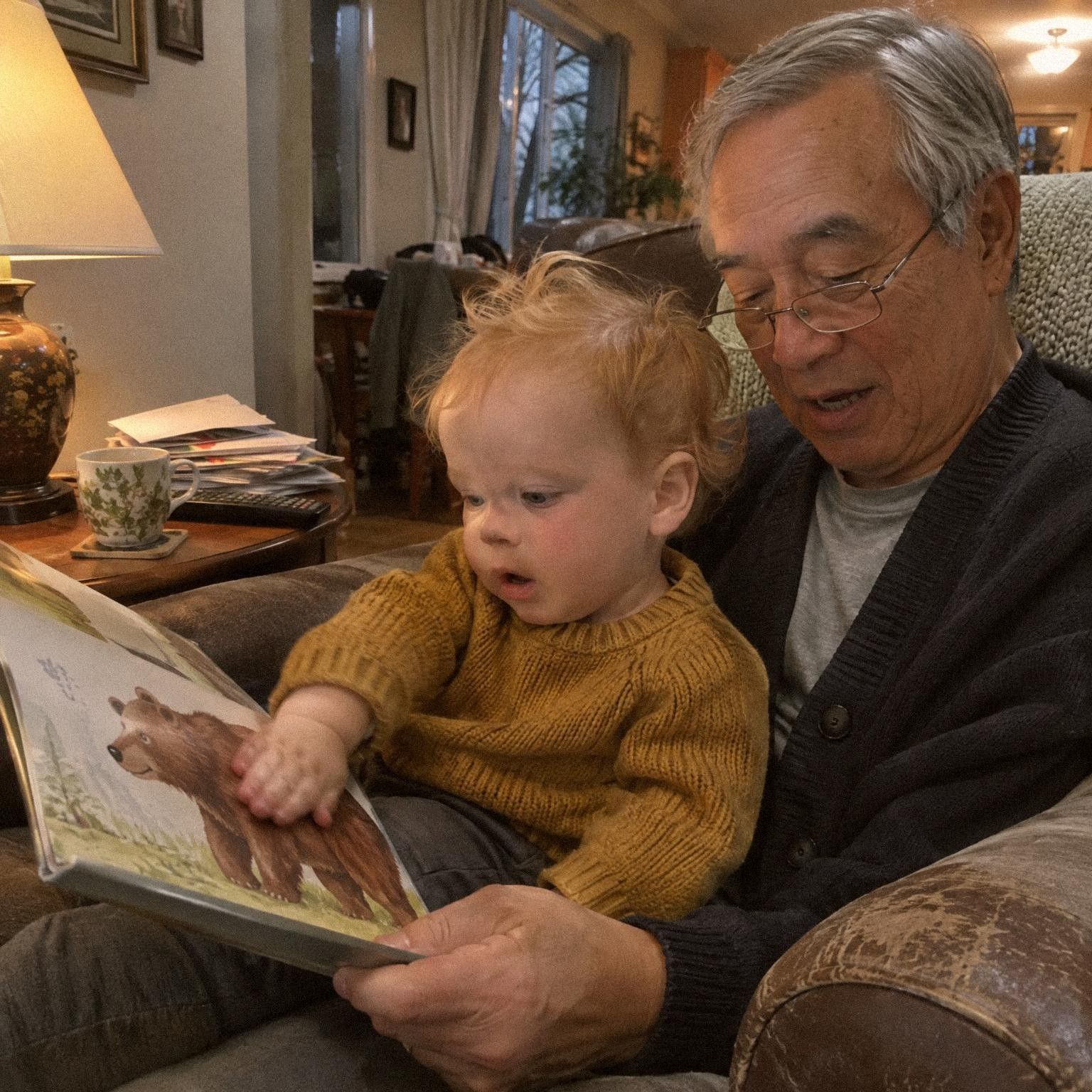
  • A grandfather in glasses reads a picture book about bears to a toddler in a mustard jumper on his lap.

    Grandparents see it all

    They follow every child’s story, add their own photos, and see a new baby as soon as you add one.

  • A curly-haired toddler lies on a bed beside a sleeping newborn and holds the baby’s tiny hand.

    A new baby kept quiet

    Someone who may see only the older child sees his story. The app never names the baby to them, even on a photo of both.

  • At his first birthday a one-year-old in a high chair reaches for a cake with one candle while a guest takes a photo on a phone.

    A friend sees one album

    Share the first birthday album with a friend. She sees that album and nothing else in the story.

How it works

An invitation takes a minute.

  1. Open Family and tap Invite

    Type their email, and a name if you like, such as Grandma. The name only labels the invitation.

  2. Choose what they do

    Close family, Only some children, Only some albums and books, Only sends photos or Parent. The line above the button says what they will see.

  3. Send it

    Tap Send invite. TinyThen emails the invitation, and you can copy the link or show a QR code as well.

  4. They join in the browser

    They see what you’ve shared, tap Join as with that email and confirm from their inbox. The invitation works for 7 days.

In the app

What they see, and what you set.

  1. An invitation open in a browser: a parent invited you to two children’s memories; see all of them, add your own photos, a parent looks first; Join as her email.
    Grandma, on her phoneThe invitation says whose memories she’ll see and what she can do there. No app to install.
  2. A childminder’s access in TinyThen: she can see and add for one child, Download originals is off, You approve first is on, and Remove.
    You, on their pageWhat they can see, original downloads, what they can add and whether you approve first, each on its own.
  3. To review: two photos from a grandmother with Add all and Don’t add, and below them one photo from a party guest and one from the childminder.
    You, in To reviewWith approval on, what they add waits here with their name on it. Add all, or Don’t add.

What to know

What you choose for each person.

  • Seeing and adding apart

    Someone can look without adding, add without looking, or both. Each covers everything, some children, some albums or nothing.

  • Approval, person by person

    With You approve first on, what they add waits in To review until you add it. Turn it off and it appears right away.

  • Downloads only if allowed

    Family and viewing links can’t download originals unless you turn it on for them. Nothing can stop a screenshot.

  • A viewing link for others

    For people without an account, a viewing link shares the whole family, some children or some albums. A password is on from the start.

  • Only the children they see

    The app shows a child’s name, photo and age only to people whose access includes that child.

  • Change or remove any time

    Changes apply right away. Remove someone and what they already added stays with your family.

  • Seven days to join

    An invitation works for 7 days. Send again keeps the same link working for 7 more, and Renew sends a new one.

  • News by email

    Invited family who can see memories get an email when new ones arrive, once a day unless they change it.

In detail

How inviting family works, in full.

What each kind of access allows, what the invitation shows, and what happens when you change it or end it.

Five ways to invite

Open Family, tap Invite and type their email. A name is optional and only labels the invitation. They choose their own name when they join. Then choose what they can do.

Close family sees every child’s memories and adds their own. Only some children sees and adds for the children you tick, and appears once you have two or more. Only some albums and books sees those albums and books, and adds only to those albums. Only sends photos adds photos for you and sees nothing else. Parent has equal rights with you. To set each part yourself, tap Customize.


The five kinds of access side by side: what each sees and adds, from Close family seeing Leo and Brooks to Only sends photos seeing nothing, and that what they add waits for you, except for a Parent.

Seeing, adding and downloading are separate

Customize opens four settings. What they can see covers everything, some children, some albums and books, or nothing. What they can add covers the same choices. Allow original downloads lets them save full-size photos and videos, and it stays off unless you turn it on. You approve first decides whether what they add waits for you.

Everything means the whole family, so it includes a child you add later. Some children or some albums never grows by itself. Original files can include the location saved by the camera. Turning downloads off removes the button, but it can’t stop a screenshot.

Before and after Brooks is added: Nana, who sees everything, now sees Leo and Brooks; Rosa, who sees only some children, still sees Leo only; original downloads start off and You approve first on.

When an invitation runs out

An invitation works for 7 days, and only for an account with the email you invited. Someone signed in with another address is told whom it is for and can switch.

Invitations nobody has accepted are listed under Family. Send again emails the same link and keeps it working for 7 more days, so a link you already shared still works. Once it has ended, Renew invitation emails a new link. Change access edits what they will get before they join. Revoke invitation stops the link straight away. Invitations that ended or were revoked are deleted 30 days later, with the email and name.

Rosa’s invitation: sent on 1 March, sent again on 4 March with the same link for 7 more days, ended on 11 March with Renew invitation or Remove invitation, and deleted on 10 April.

Approving what family add

Family members start with You approve first on. What they add then waits in To review with their name on it, and you choose Add memory or Don’t add. Turn it off on their page and what they add appears once it is ready. What parents add never waits.

Family members can change the words, date and time of what they added, or delete it, until a parent has reviewed or edited it. After that, only parents can change it. A memory a family member deletes goes to Recently deleted, where parents can restore it for 30 days.

Nana adds a photo, it waits in To review with Add and Don’t add, then joins Leo’s timeline; Nana can change or delete it until a parent has reviewed it, and with You approve first off it appears once it is ready.

Children they can’t see stay private

The app names a child, and shows their photo and age, only to people whose access includes that child. Someone who sees only the older child sees a photo of both in that child’s story, with only that child’s age. The baby isn’t named anywhere they look: in tags, albums, recaps, emails or the invitation.

Someone who only sends photos sees the names and photos of the children they add for, and never their memories. The rule covers what the app shows. Captions and album names appear as their authors wrote them, so a caption that mentions a sibling still shows.

The same photo of both brothers on 27 September 2026: a parent sees both children’s ages and both children, while Rosa, who may see only Leo, sees Leo was 1 year 7 months and only Leo.

What the invitation shows

TinyThen emails the invitation from hello@tinythen.com, with a button to open it. Right after you send it, you can also copy the link or show its QR code. That link is shown only once.

Before they join, the page shows your first name, the children’s names and Here’s what you can do. For a child they will see, it gives the age in words. It never shows a photo or a date of birth. They tap Join as, followed by the email you invited, type their name and confirm with a link or six-digit code from the next email. There is nothing to install, and a password is optional.

Changing, removing and leaving

Tap someone’s name under Family to change what they see or add. Each change applies right away, and a change that takes access away offers Undo straight after. For someone who sees whole children, parents can also share growth: height and weight. It stays off until you turn it on.

Remove takes away access at once. TinyThen doesn’t email them about it, and what they added stays with your family under their name. Family members can leave by themselves from Family settings. Parents are equal, so no parent can remove another, and the last parent can’t leave. Leave or remove someone has the steps.

New parents, and family in two families

To make a family member a parent, open their page and tap Make … a parent, with their name in the button. They accept a new invitation and get equal rights to every child. A parent can’t be turned back into a family member.

One person can belong to several families, such as a grandmother invited by her daughter and by her son. Each family’s access is separate, and two families never see each other’s children. Each family member can also have a Relationship, such as Grandparent or Aunt or uncle, which picks the journal questions they get. Family members never pay.

Three ways in

Invite, share a viewing link, or a guest link.

An invitation is for the people you keep close. A viewing link lets people look without an account, and a guest link lets them add photos without one.

Invite, share a viewing link, or a guest link.
TopicInvite by emailViewing linkGuest link
AccountYes. They sign in with a link or code sent to their email.No.No. They give their name, and how they know the family if they like.
What they seeWhat you choose: everything, some children or some albums.The whole family, some children or some albums.Only what they added.
What they addWhat you choose, or nothing.Nothing.Photos, videos, voice notes and words.
Your approvalNeeded or not, person by person.Nothing to approve.Needed or not, link by link.
Original downloadsOnly if you allow it.Only if you allow it.Guests see only what they added.
Ending itRemove them whenever you like.Set a last day, or revoke it.Pause it, or give it a new address.

Questions

Questions

Something else? Write to hello@tinythen.com.

Does Grandma need an app or a password?

No app. She opens the invitation in her browser and joins with her name and email. She signs in with a link or code sent to that email, so a password is optional.

How long does an invitation work?

For 7 days, and only for an account with the email you invited. If it runs out, renew it from Family and a new link is emailed.

Can someone see one child but not the other?

Yes. Choose Only some children and tick the child they may see. The app never names the other child to them, even on a photo of both. Captions and album names show as their authors wrote them.

Do I have to approve what family adds?

Only if you want to. Family members start with You approve first on. Turn it off on someone’s page and what they add appears right away. What parents add never waits.

Can family download our photos?

Not unless you turn on Download originals for them, or for a viewing link. Parents can always download. Turning downloads off can’t stop someone taking a screenshot.

What happens when I remove someone?

They lose access right away, and what they added stays with your family. Parents are equal, so a parent can’t remove another parent; each parent can leave by themselves. Leave or remove someone has the steps.

Can grandparents be in our family and my sister’s family too?

Yes. One account can belong to several families, and each family invites them separately. Each family’s access is kept apart, so the two families never see each other’s children. They switch between the children at the top of the app.

Will grandparents know when there are new photos?

Yes, if you invite them by email. Family who can see memories get an email when new ones arrive, once a day to start. Each person can change how often, or turn it off.

How is this different from a WhatsApp group or a shared album?

In a group chat or a shared album, everyone in it sees everything, and photos scroll away or pile up with no order. In TinyThen you choose for each person which children and albums they see, whether they can add, and whether they can download originals. Every photo stays in your child’s story by date, with their age. Our guide to sharing baby photos without social media compares the options.

Keep reading

Start their story with the family.

Join the waitlist for 20% off your first year. We’ll write once, when the 30-day trial is ready for your family.

TinyThen is in development. We’ll email once to confirm and send your code, then only when the trial is ready. Leave any time.