
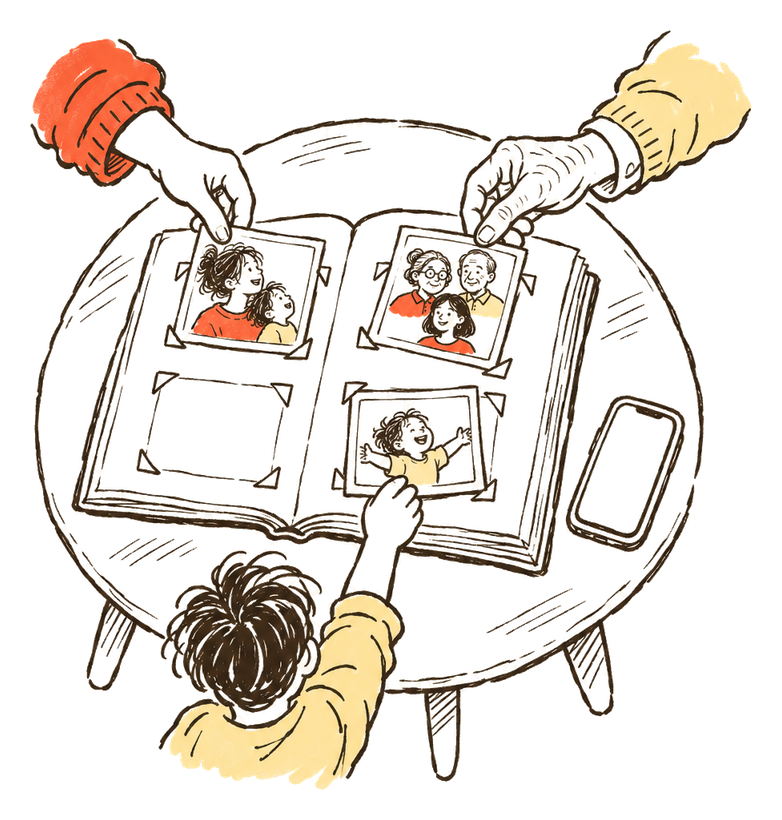
A shared album puts the family’s photos in one place, and the people you invite can look at them and add their own. The two most common are Google Photos and iCloud Shared Albums. They handle phones, links and storage differently, and that matters when half the family has an iPhone and the other half has Android.
This guide walks through both, step by step, plus shared albums on Samsung Galaxy phones, with the settings worth checking before the first photo goes in.
Google Photos or iCloud: which to use
If everyone in the family has an iPhone, an iCloud shared album is built into Photos and needs no extra app. If the family is mixed, Google Photos runs on Android and iPhone alike, and its album link opens without a Google Account. iCloud albums made with iOS 27 or later now open on Android too.
| Google Photos shared album | iCloud shared album, iOS 27 or later | iCloud shared album, iOS 26 or earlier | |
|---|---|---|---|
| Who makes it | Anyone with a Google Account, on Android or iPhone | An Apple Account on iPhone, iPad or Mac | An Apple Account on iPhone, iPad or Mac |
| How family join | You add them, send a link or show a QR code | You invite them, or send a link | You invite them by email or phone number |
| Without an account | Anyone with the link can view it | Join and add photos on the web, on any device | Anyone can see it in a browser if you turn on Public Website |
| Who can add photos | Everyone, or nobody | You choose for each person | Everyone, or nobody |
| Photo size | Google’s sharing pages don’t say | Full resolution | Reduced to 2048 pixels on the long edge; video up to 720p |
| Storage | Google’s sharing pages don’t say | Counts toward the owner’s iCloud storage, including what others add | Doesn’t count toward iCloud storage |
| Size of one album | Up to 20,000 photos or videos | No limit beyond the owner’s iCloud storage; 100 people including the owner | 5,000 photos and videos; 100 subscribers |
| Location | Left out by default | See privacy below | See privacy below |
How to make a shared album in Google Photos
To make a shared album in Google Photos, select the photos in the app, tap Create, then Album, give it a title and tap Done. Then tap Share and choose people from your contacts, or create a link for anyone who isn’t on Google. The steps below are the same on Android and iPhone, apart from one button name.
- Open the Google Photos app and sign in to your Google Account.
- At the bottom, tap Photos.
- Touch and hold the photos or videos you want, then tap Create, then Album.
- Enter an album title and tap Done.
- Tap Share and select who to share it with.
You can share straight to anyone with a Google Account who is in your contacts, or find them by email address or phone number. Google Photos then sends them an email about the new album.
Share it by link or QR code
For family who don’t use Google Photos, send a link. Open the album, tap Share, then Create link on Android or Get link on iPhone. Google says anyone who has the link can view the album and add to it.
A QR code is handy at a family get-together. Open the album, tap Share, then Show QR Code, and let people scan it. Google suggests taking a screenshot of the code if you want to print it. Anyone who scans it can open the album.
Let family add their photos, or stop them
While Collaborate is on, anyone with the link can add photos. To turn it off, open the album, tap More, then Sharing settings, and turn off Collaborate. Google says you can’t stop one person from adding; it’s everyone or nobody. Photos already added stay until you remove them.
Turn off the link
Open the album, tap More, then Sharing, and turn Link sharing off. Turning it off and back on gives the album a new link, and the old one stops working. Do this if the link has gone further than you meant.
How to make a shared album in iCloud
To make an iCloud shared album on iPhone, open Photos, tap Collections, scroll to Shared Albums and tap Add. Name the album, choose photos, then pick whether to invite people or share a link. Albums made with iOS 27, iPadOS 27 or macOS 27 or later keep full resolution, and family can join on the web.
First, turn Shared Albums on. On iPhone or iPad, go to Settings, tap your name, then iCloud, and under Saved to iCloud tap Photos. In iOS 27 or later, iCloud Photos must be on. Then turn on Shared Albums.
On iPhone or iPad, with iOS 27 or later
- Open Photos and tap Collections.
- Scroll down to Shared Albums, tap Shared Albums, then tap the Add button.
- Name the album and choose photos for it.
- Tap Sharing Options to choose whether to invite and approve people, or share the album with a link.
- Tap Done.
For one party or trip, turn on Make Album Temporary while you create the album. Apple says iCloud Photos doesn’t have to be on to create a temporary shared album.
To add photos later, tap Select in your library or an album, choose the photos, tap the Share button, then Add to Shared Album, pick the album and tap Done. Apple says participants get a notification when you add new photos.
To invite more people later, open the album, tap Manage Shared Album, then under Participants tap Invite Participants and pick an app to send the link. You can also tap Copy Album Link. If you allow access requests, people with the link ask to join and you tap Approve or Decline.
On a Mac, with macOS 27 or later
In Photos, find the Sharing section of the sidebar and click the Add button next to Shared Albums. Type a name, choose whether to invite and approve people or share with a link, and click Create. To invite more people, open the album, click Manage Shared Album, then Invite Participants or Copy Album Link. Access requests appear under Activity in the sidebar.
What changed in iOS 27
Apple says that from iOS 27, iPadOS 27 and macOS 27, family can join a shared album and add their own photos on the web, even without an Apple Account or Apple device. Photos stay at full resolution. Everything in an album you own counts toward your iCloud storage, though, including what other people add.
Anyone on older Apple software has to update their device or view the album on iCloud.com.
Albums made with iOS 26 or earlier
Older albums keep working as before. Photos are reduced to 2048 pixels on the long edge, and videos to 720p. For family without iCloud, open the album, tap the More button, then Shared Album Details, and turn on Public Website. On a Mac, click the People button in the toolbar instead. Apple says anyone can then see the album in an up-to-date web browser.
How to make a shared album on a Samsung Galaxy
Samsung’s Gallery app has its own shared albums, made through a Samsung account. Open Gallery, tap the menu, choose Shared albums and create one, then invite people from your contacts, by Samsung account ID or with a link. Samsung says everyone taking part needs a Samsung account, so it suits a family where everyone has a Galaxy phone.
Samsung’s support page gives these steps:
- Open the Gallery app.
- Tap the menu icon (three lines) at the top left, then Shared albums.
- Tap Get Started and sign in to your Samsung account if asked.
- Enter a name for the album and tap Create.
- Invite people through Contacts, by Samsung account ID, or share a link.
Once people accept, Samsung says everyone can view the album and add photos and videos to it. Menu names can differ between Galaxy models and software versions. For family on iPhones or other Android phones, Google Photos is usually easier, because it doesn’t need a Samsung account.
A family with iPhones and Android phones
For a family with both iPhones and Android phones, Google Photos is the simpler default. The app runs on both, and a link opens for people without a Google Account. If the album’s owner has an iPhone on iOS 27 or later, an iCloud album also works, because Android family can join and add photos from the link.
A few things to weigh:
- Who pays for the space. In an iCloud album made with iOS 27 or later, everything counts toward the owner’s iCloud storage, including other people’s photos.
- Who can add. iCloud lets you choose Can Add Photos for each person. Google Photos lets everyone add, or nobody.
- Who has old software. iCloud participants on older Apple software must update or use iCloud.com.
- Who will actually open it. For grandparents, a link that opens in the browser is often enough. Our guide to sharing photos with grandparents covers what else helps.
Privacy settings to check
Before you share, check three things: who can join, who can add photos, and whether the photos carry their location. A link is the easiest way in for family, and also the easiest way for an album to reach people you didn’t mean to invite. Both apps let you tighten each of these.
Who can join. In Google Photos, anyone with access to the album can add other people to it, and a link can be passed on by whoever has it. In iCloud, you choose in Sharing Options whether only people you invite or approve can get in, or anyone with the link.
Who can add. In Google Photos, turn off Collaborate if only you should add photos. In iCloud, open Manage Shared Album, tap a person and check Can Add Photos.
Removing someone. In Google Photos, tap More, then Sharing, find the person, tap More and Remove person. Google warns that while link sharing is on, anyone with the original link can still view the album, so turn the link off too. In iCloud, open Manage Shared Album, tap the person and tap Remove Participant.
Location. Google Photos leaves location out of new shared albums and links by default, unless you choose to include it. Our guide on removing location from photos covers every device. Google adds that people may still guess the place from landmarks in the photo. Apple says people you share photos with may be able to see where they were taken. To remove it from a photo on iPhone, open it, tap the More button, then Adjust Info, Adjust Location and No Location. When you share from Photos, you can also tap Options and turn off Location.
Automatic albums. Google Photos can set up an album that adds photos of chosen people automatically. If that album is shared, everyone with access sees each photo as it’s added.
Copies stay. On both, photos someone has saved or downloaded stay with them after you stop sharing or delete the album. For more on keeping baby photos within the family, see sharing baby photos without social media.
When a family app suits better
A shared album suits one event or one stream of family photos. It is less suited to keeping years of a child’s photos in order, or to showing different people different things. Everyone in an album sees all of it, and albums are sorted by album, not by child. Nothing shows the child’s age unless you write it; the baby age calculator works it out for any date.
A family app like TinyThen keeps one story per child, with their age on every memory, and lets you choose for each person what they see and whether they can add. Albums are optional and can hold one or several children. Family add photos from a guest link without an account, and the help page on guest links and approval shows how you check what they add. TinyThen isn’t open yet. Our list of the best family photo sharing apps compares it with the others.
Questions
How do I add photos to a shared album?
In Google Photos, open the album, tap Add to album, select the photos and tap Done. Family can add theirs while Collaborate is on. On iPhone, tap Select, choose photos, tap Share, then Add to Shared Album and pick the album. Apple says participants get a notification when new photos arrive.
Can I make a shared album for one event?
Yes. On iPhone with iOS 27 or later, turn on Make Album Temporary when you create a shared album. Apple also lets you make an existing album temporary instead of deleting it, and it is then deleted in 30 days. Save any photos you want to keep first. For a first birthday party, our guide to a first birthday time capsule shows how to collect guests’ photos with a QR code.
Can someone without a Google Account see a Google Photos shared album?
Yes. Send them a link to the album. Google says anyone with the link can view the album, and if Collaborate is on, add to it.
Can Android phones join an iCloud shared album?
Yes, if the album was made with iOS 27, iPadOS 27 or macOS 27 or later. Family open the link on any phone or computer and can join and add photos on the web, without an Apple Account. For older albums, the owner can turn on Public Website, which anyone can see in a web browser.
How many photos can a shared album hold?
A Google Photos album holds up to 20,000 photos or videos. An iCloud album made with iOS 27 or later has no limit beyond the owner’s iCloud storage. One made with iOS 26 or earlier holds 5,000 photos and videos from everyone combined.
How many people can join an iCloud shared album?
Up to 100, including the owner, for albums made with iOS 27 or later. Older albums allow 100 subscribers.
Can I stop one person from adding photos?
In iCloud you can. Turn off Can Add Photos for that person. In Google Photos, no. You can only stop everyone, by turning off Collaborate.
What happens to the photos when I stop sharing?
In Google Photos, removing a person removes their photos and comments from the album, and making the album private removes what others added. In iCloud, deleting a shared album permanently deletes all its photos, so save any you want first. On both, copies people already saved stay with them.
Sources
- Google Photos Help: Share photos & videos (Android)
- Google Photos Help: Share photos & videos (iPhone & iPad)
- Google Photos Help: Stop sharing an album & manage settings
- Google Photos Help: How shared album controls give your photos more privacy
- Google Photos Help: How Google Photos protects your location data
- Google Photos Help: Create & edit photo albums
- Apple Support: How to use Shared Albums in Photos on your iPhone, iPad, or Apple Vision Pro
- Apple Support: How to use Shared Albums in Photos on your Mac
- Apple Support: Shared Albums limits
- Apple Personal Safety User Guide: Manage location metadata in Photos
- Samsung Support: Samsung Gallery, creating a shared album
 Leo